Watch the complete Notion Skills walkthrough on YouTube
A Notion Skill is a set of reusable instructions stored and maintained on a Notion page. You can run the Skill from Notion Agent or the page editor. If the Skill lives in a Skills database and has a clear description, Notion Agent can also choose it automatically when your request matches.
Last reviewed: August 21, 2026.
I'm a certified Notion consultant and Notion Solutions Partner. The campaign example below comes from a real Workcraft workspace and the recorded walkthrough for this article.
Notion Skills give repeatable AI work a visible home. Instead of hunting through an old chat for the right prompt, your team writes the process once, shares the page, and improves the instructions after each real run.
That sounds simple because it is. The useful part is what the page can contain: the goal, required inputs, database targets, ordered steps, examples, constraints, output format, and final checks. Notion's current Skills guide describes Skills as reusable instructions for a specific type of work and recommends starting with a process you repeat.
In the video walkthrough, I use one Skill to turn a campaign brief into a project with related tasks, subtasks, meetings, documents, and page-level instructions. The first run misses a database target. That failure shows the real operating advantage: fix the Skill once instead of repairing every future campaign by hand.
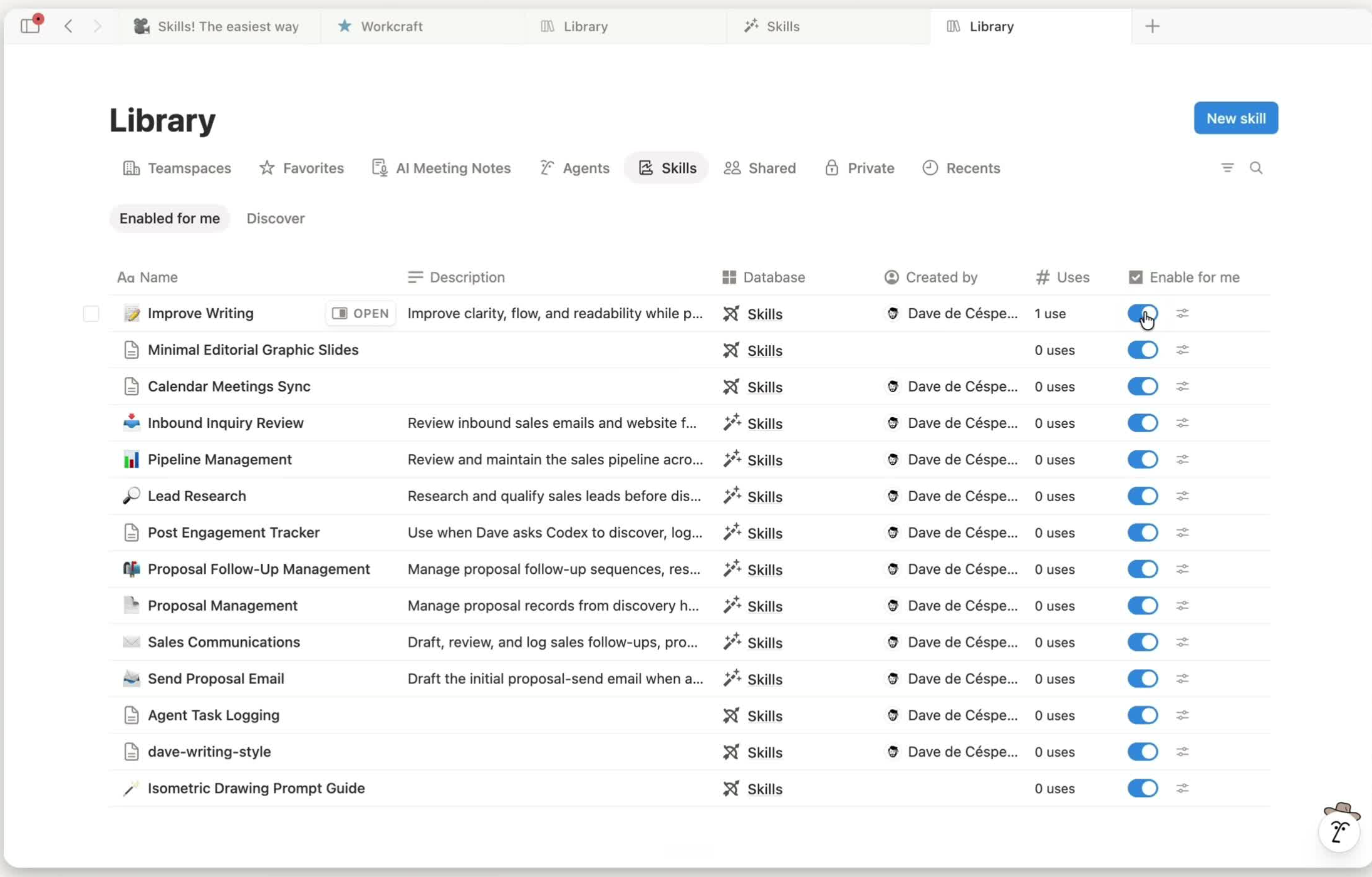
What does a Notion Skill do?
A Skill turns a repeated prompt into an on-demand workflow. The person running it supplies the current context, and Notion Agent follows the page's instructions using the pages and databases that person can access.
The key functions are straightforward:
- Store reusable instructions. The Skill page holds the process, references, examples, constraints, output requirements, and checks.
- Run with current context. You can invoke a Skill from Agent chat, selected text, the slash menu, or the block menu.
- Use Notion content. Notion Agent can read, create, and edit pages and databases within the runner's permissions.
- Support automatic selection. A Skill in a Skills database can have a description that helps Agent decide when to use it.
- Share one approved process. Normal page permissions control who can run the Skill and who can edit it.
- Improve future runs. When a repeated error appears, update the Skill page rather than patching every output.
Notion's current guidance gives a useful rule of thumb: if you have copied and pasted the same prompt twice, it is probably a Skill candidate.
Skills, instructions, Custom Agents, and automations
These tools solve different operating problems. The trigger should decide which one you use.
| Tool | How it starts | Best use | What to watch |
|---|---|---|---|
| Agent instructions | Always active in your personal Notion Agent | Persistent preferences for tone, priorities, and default behavior | Broad instructions can affect every response |
| Notion Skill | Run on demand or selected automatically when relevant | Repeatable, contextual work that needs a consistent result | The Skill still needs current inputs and a clear definition of done |
| Custom Agent | Schedule, Notion event, Slack event, or direct interaction | Background work with its own instructions, tools, and access | Custom Agent permissions and triggers need separate review |
| Database automation or button | Defined event or deliberate click | Predictable actions with known inputs and outcomes | Long task sequences can become hard to inspect and maintain |
Skills run on demand, while Custom Agents can run in the background from schedules or workspace events. A Custom Agent can also use a Skill page when the Agent has access to it. For a deeper setup guide, read Notion Custom Agents: How They Work and When to Use Them.
Skills do not replace automations or buttons. Use a Skill when the work needs context and judgment. Use an automation when a defined event should cause a predictable action.
How to create a Notion Skill
1. Start with work you already repeat
Pick one workflow that happens often enough to expose its pattern. A campaign launch, proposal draft, meeting recap, project setup, or SOP rewrite is a better starting point than a page that tries to run an entire department.
Start with a bullet-point outline if the process is still fuzzy. List what happens, who is involved, what pages or databases the work touches, and how you know the job is complete. That rough page gives you something concrete to test.
2. Write a small instruction contract
A reliable Skill page should answer seven questions:
- What job should the Skill complete?
- What information must the person provide?
- Which pages, databases, or references may the Skill use?
- What steps should Agent follow, and in what order?
- What should Agent leave blank or ask about instead of inventing?
- What should the final output look like?
- What must Agent verify before reporting completion?
Keep the working instructions short and link longer SOPs or reference pages. Both Notion's Skill guidance and Anthropic's Skill authoring guidance recommend focused instructions, explicit outputs, and real tests.
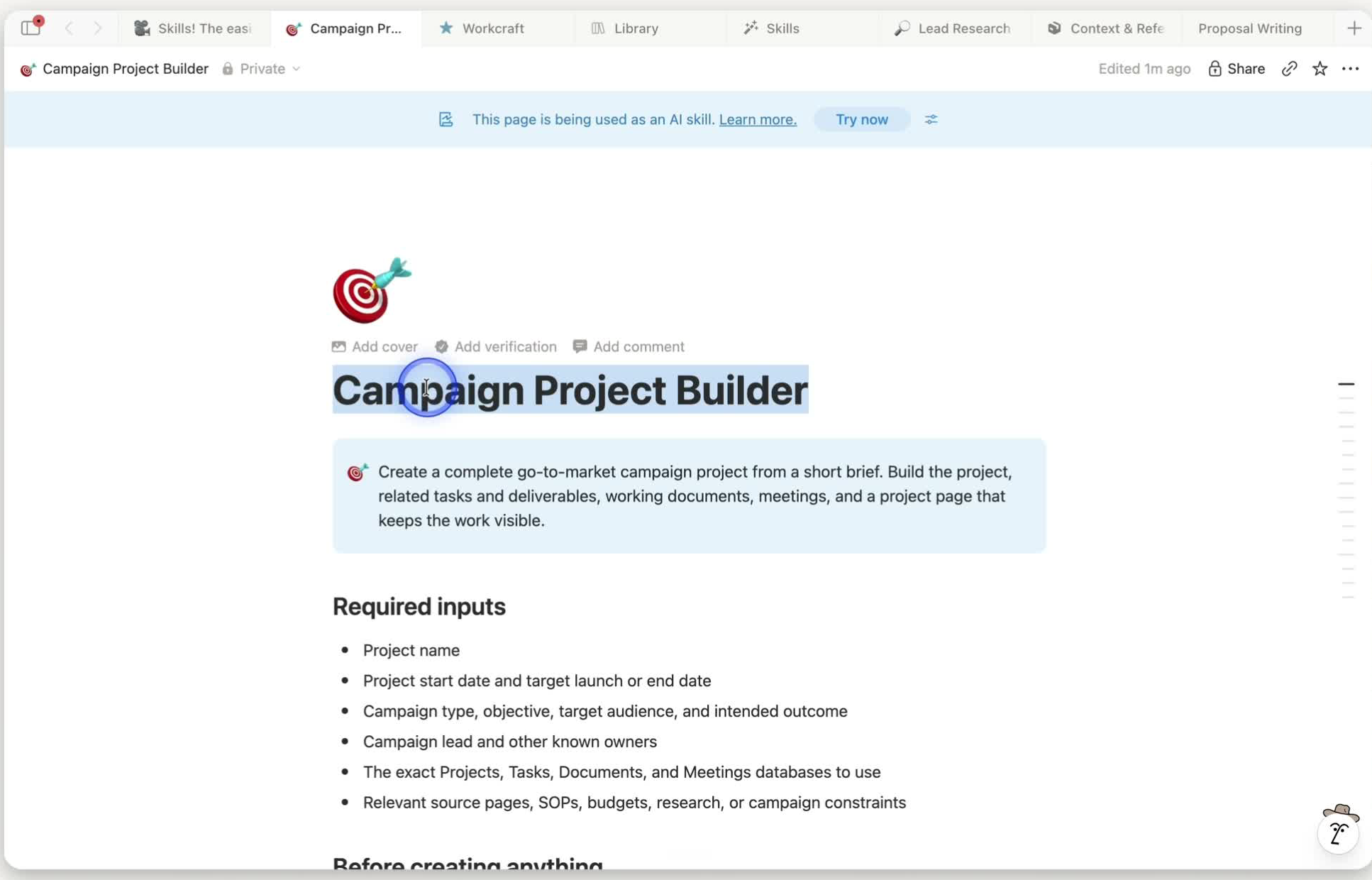
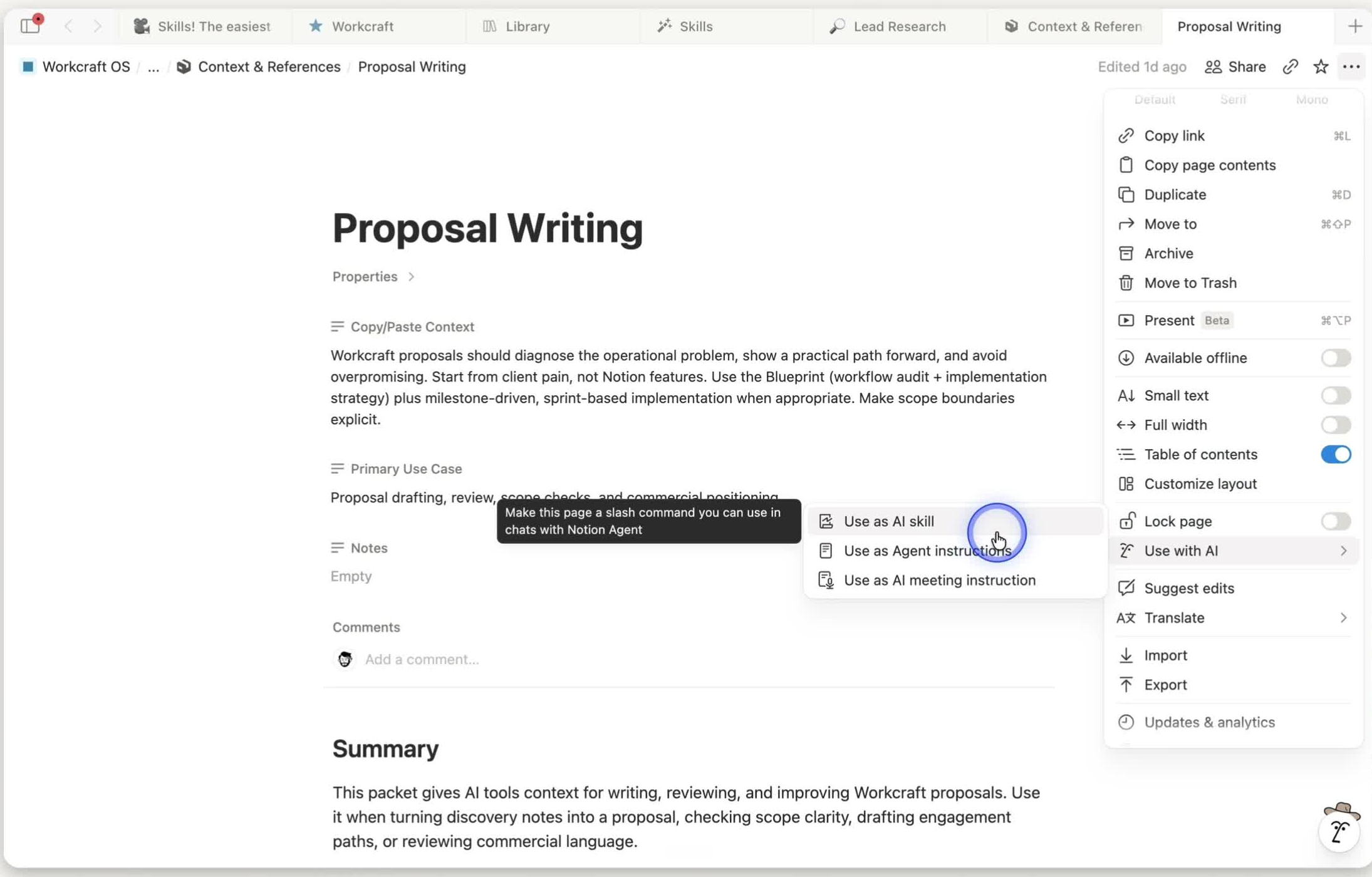
3. Mark the page as a Skill
Open the page menu and choose the Skill action. Notion's Help Center currently describes the path as ••• → Use as a Skill. In the recorded workspace, the action appears under ••• → Use with AI → Use as AI Skill. The exact nesting may vary as the interface changes.
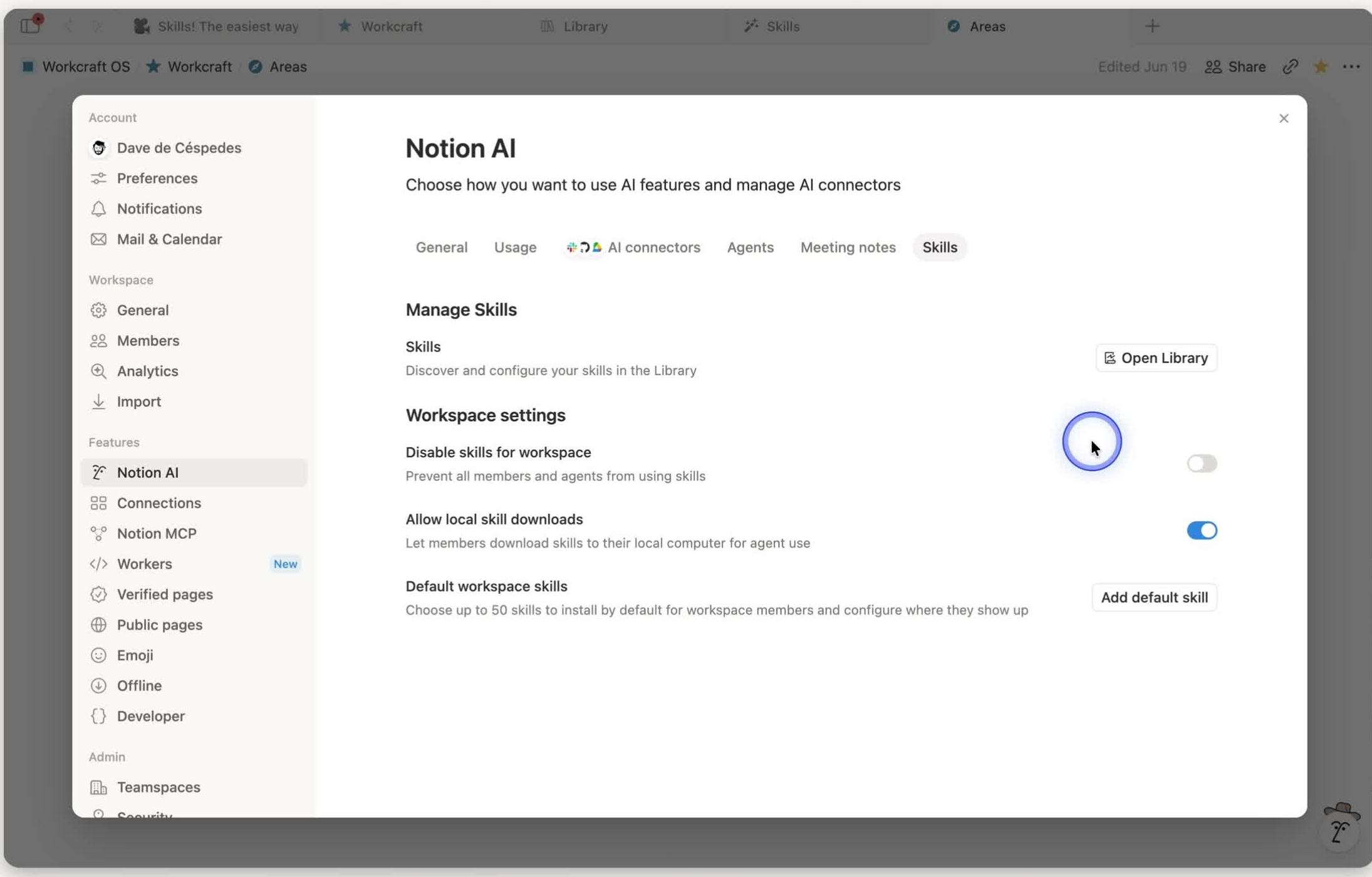
After the action completes, the page shows a blue Skill banner. You can manage Skills from the Library's Skills tab or Settings → Notion AI → Skills.
4. Run the Skill with real context
From Notion Agent, type / and select the Skill, or use the page from the editor's text-selection, slash, or block menu. The video uses an @mention because that interaction makes the source page visible in the chat. Interface conventions can change, so follow the invocation shown in your current workspace.
For a workflow that creates or changes records, add a review instruction such as: Show me the plan before you create anything. Review-before-write is an instruction you add to the Skill or prompt. It is not a separate built-in Skill permission.
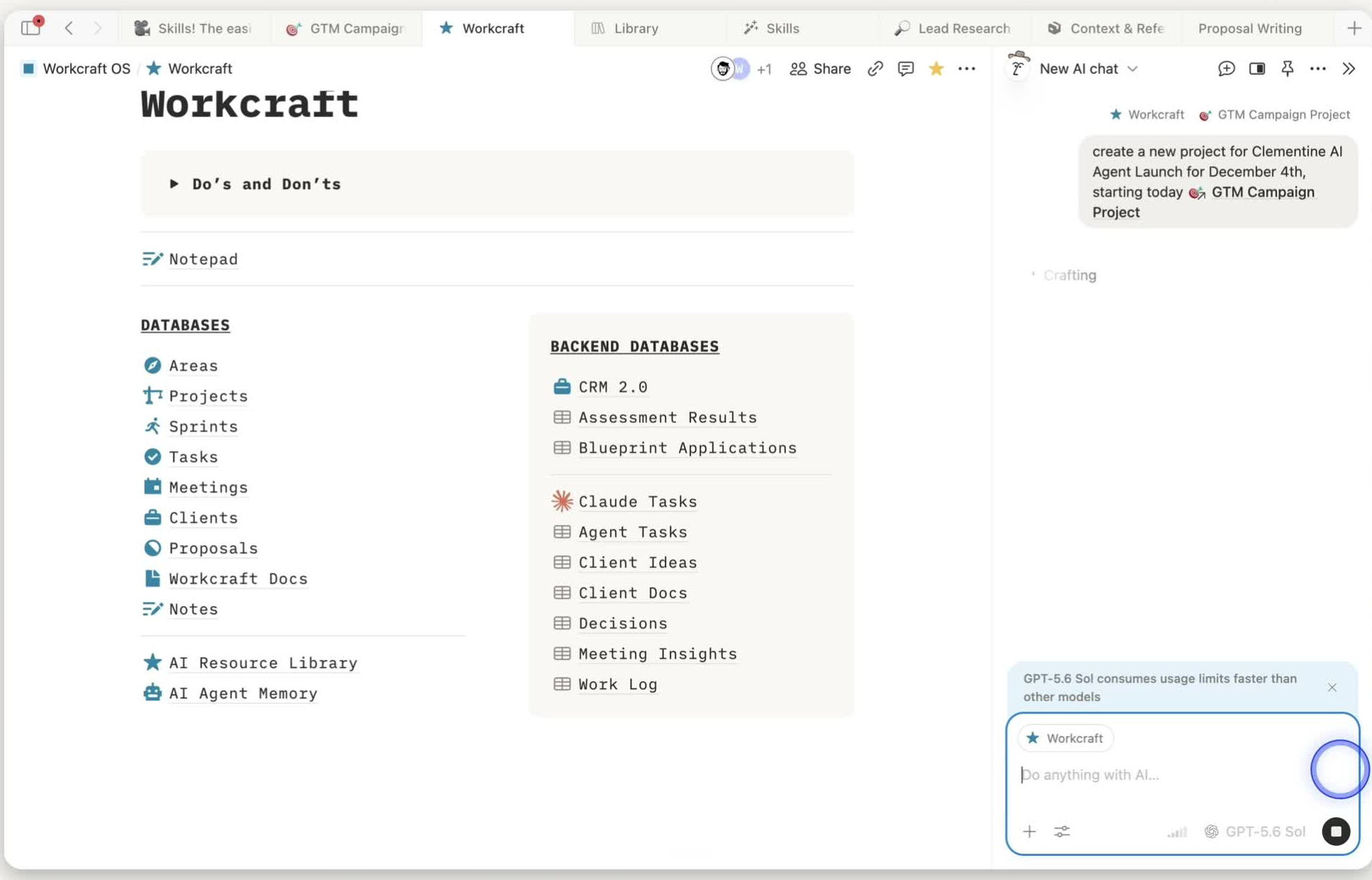
5. Inspect the result and update the Skill
Do not stop at the Agent's success message. Open the records and check the relations, dates, owners, subtasks, instructions, and database destinations.
Fix repeated errors in the Skill, not in every output it creates.
That is the maintenance loop: run the workflow, inspect the result, update the instructions, and test again. If the change affects how your team works, record it in a shared changelog so people know what changed and why. A company changelog makes AI workflow changes visible instead of leaving the new behavior hidden in one page.
A practical example: create a campaign project
The video starts with a bullet outline for a go-to-market campaign. The outline includes tasks, deliverables, meetings, and documents. Notion Agent turns that rough material into a structured Skill page before the Skill creates anything in the operating databases.
The person running the Skill provides a short brief:
- Campaign name and type
- Project lead
- Start date and launch date
- Target audience
- Any known owners or required references
The Skill contains the reusable logic. It identifies the Projects, Tasks, Meetings, and Documents databases; defines relative due dates; preserves parent and subtask order; leaves unknown owners blank; and specifies how the new project page should display related work.
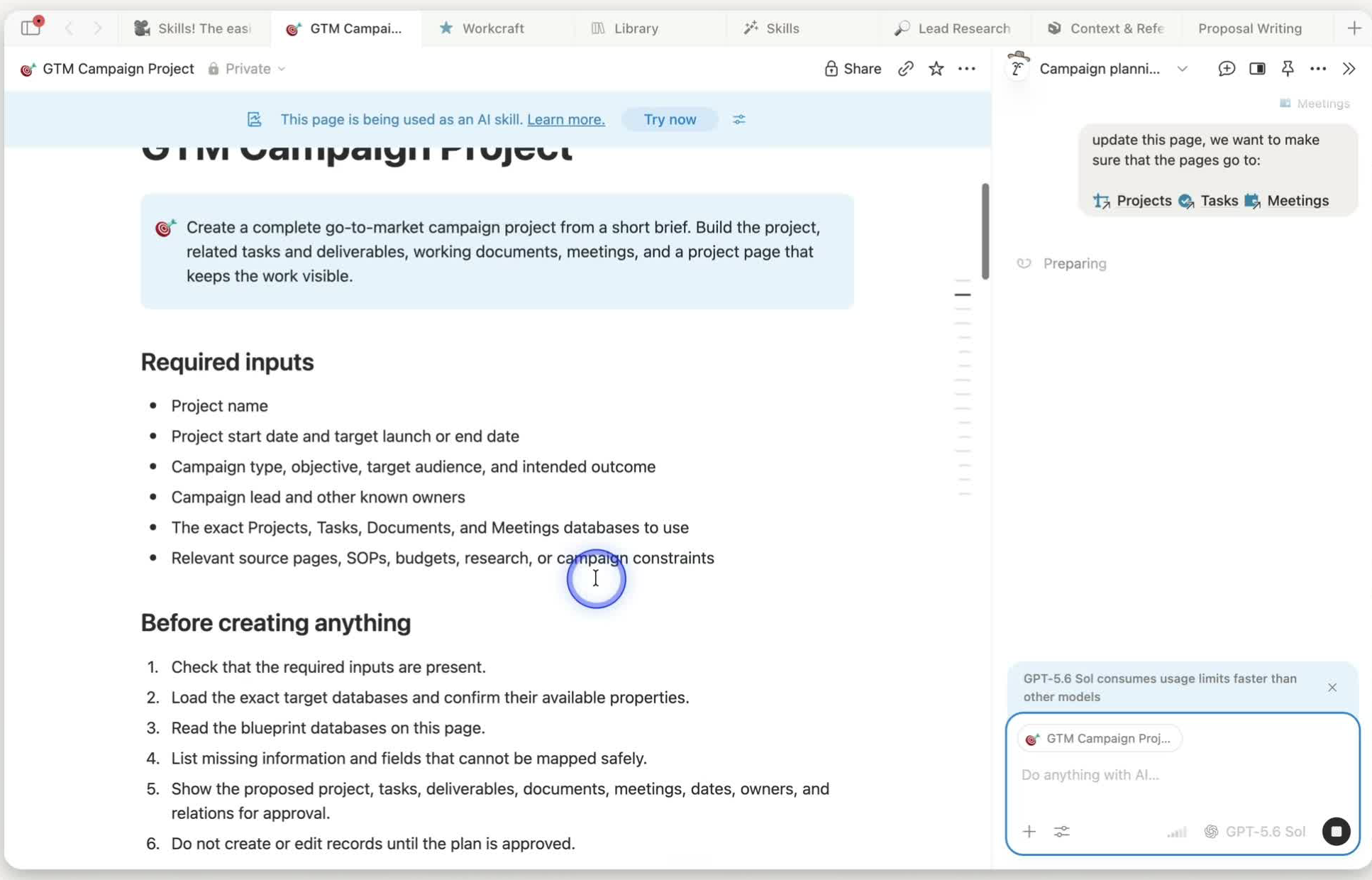
Notion Agent then creates the project and connects the related work. In the recorded run, the task and meeting views appear correctly, but the documents land in the wrong place. The right correction is explicit: update the Skill to name the shared Documents database, then rerun a disposable test.
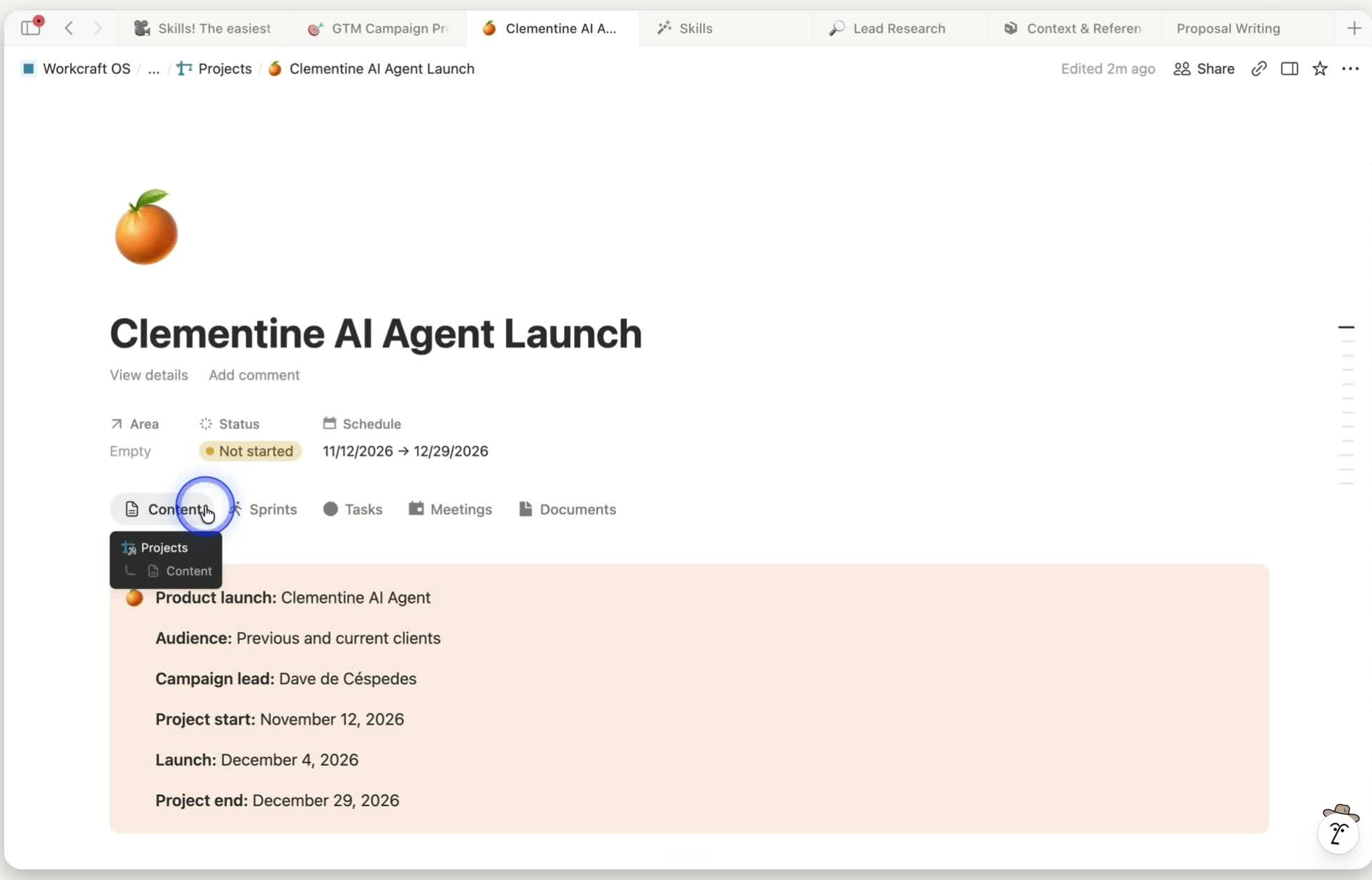
This example works because the process is explicit enough for Agent to follow. The workspace is the output of the process, not the starting point.
How Skills work across a team
A Skills database gives teams one place to own, describe, share, and improve reusable instructions.
Every page created inside a Skills database becomes a Skill automatically. The database adds official properties such as Description, Files, and Tags. The description matters because Notion Agent reads it when deciding whether to use the Skill automatically.
Add only the management fields your team will maintain. Owner, department, workflow, status, and last reviewed date are usually more useful than a long taxonomy. The point is to make three things obvious: what the Skill does, who owns it, and whether the team should still use it.
Sharing follows normal Notion page permissions. Someone with access can run the Skill. Someone with edit access can change its instructions. Notion Agent uses the same content permissions as the person running it, while Custom Agents have their own explicitly granted access.
Notion Skills versus local SKILL.md packages
A Notion Skill is a Notion page. A filesystem-based Agent Skill in tools such as Claude Code or Codex is a local package built around a file named SKILL.md.
The authoring principles overlap: give the Skill a clear purpose, define when it applies, keep the core instructions focused, and move longer references or scripts into supporting files. Anthropic's Agent Skills overview documents a package that can include SKILL.md, reference files, scripts, templates, and examples. OpenAI Academy's Skills guide covers the same move from repeated tasks to reusable workflows in ChatGPT.
Notion now supports downloading a Skill page to a folder for use with local AI tools. Treat that download as a transfer copy. Notion's documentation does not describe automatic two-way synchronization between the page and an installed local package. If the approved process changes, update the source of truth and deliberately refresh the copies that other tools use.
What makes a good Notion Skill?
A good Skill handles one recognizable job and makes the risky parts explicit. It should be easy for a teammate to open the page and understand what the Agent will do before running it.
- The title and description name the job in plain language.
- Required inputs are listed before the steps.
- Database and page targets are linked directly.
- Unknown information stays blank or triggers a question.
- Steps appear in the order they should run.
- Output requirements are specific enough to inspect.
- High-impact writes require a plan or confirmation.
- The final step checks the records, not only the Agent response.
- An owner and last-reviewed date are visible.
The likely failure mode is writing a Skill before the team understands the workflow. If the page keeps growing because every exception needs another paragraph, stop and clarify the process. AI cannot stabilize work the team has not defined.
Frequently asked questions
What is a Notion Skill?
A Notion Skill is a reusable set of instructions stored on a Notion page. The Skill tells Notion Agent how to complete a recurring task, what context to use, what constraints to follow, and what output to produce.
Are Notion Skills just regular pages?
Yes. A Skill is a Notion page marked for use by Notion Agent. Because the instructions live on a page, teams can read, edit, share, organize, and improve the Skill with the same controls they already use in Notion.
How do you run a Notion Skill?
You can run a Skill from Notion Agent chat or the page editor. Current options include the slash menu, text-selection menu, and block menu. Notion Agent can also select a relevant Skill automatically when the Skill has a clear description in a Skills database.
Can any Notion page become a Skill?
Yes. Open the page menu and choose the Skill action, or ask Notion Agent to mark the page as a Skill. Pages created inside a Skills database become Skills automatically and receive the database properties used for management and automatic selection.
What is the difference between a Skill and Agent instructions?
Agent instructions are persistent preferences that affect every response from your personal Notion Agent. A Skill is a focused workflow used for a specific task or selection. Put default behavior in instructions and repeatable jobs in Skills.
What is the difference between a Skill and a Custom Agent?
A Skill handles contextual work on demand. A Custom Agent has its own instructions, tools, access, and triggers, so it can run from a schedule or workspace event. A Custom Agent can use a Skill page when it has access.
Do Notion Skills replace database automations?
No. Skills are better for contextual work that requires AI judgment and current inputs. Database automations are better when a defined event should produce a predictable action. Many workspaces will use both, with each tool handling the job it fits.
Who can run or edit a shared Skill?
Notion uses normal page permissions for Skills. People with access to the Skill page can run it, while people with edit access can change its instructions. Review edit access carefully when the Skill creates records or affects client-facing work.
Can Notion Agent use a Skill automatically?
Yes. Automatic use is available for Skills stored in a Skills database with a clear description. Notion Agent reads that description to decide when the Skill matches a request. You can turn automatic use off when a workflow should run only by explicit request.
Can I use a Notion Skill in Claude Code or Codex?
Notion can download a Skill page to a local folder for other AI tools. Local Agent Skills use package conventions such as SKILL.md, references, and scripts. Treat the export as a separate copy and refresh it deliberately when the Notion source changes.
What should a Notion Skill contain?
Include the job, required inputs, allowed sources, ordered steps, constraints, desired output, and final checks. Link the exact pages or databases the Skill needs. Keep the main page focused and move longer background material into linked references.
How should a team organize Notion Skills?
Use a Skills database with a clear description, owner, department or workflow, status, and last-reviewed date. Keep the taxonomy small. The database should make useful Skills easy to find and make stale or unowned Skills easy to retire.
What should I build first?
Choose one workflow your team repeats every week and can already explain. Start with a bullet outline, turn it into a focused Skill, run it on disposable data, and inspect every created record before expanding the pattern.
Start with one repeated workflow
Pick one process your team already runs. Write the inputs, steps, database targets, output, and checks on one page. Mark it as a Skill, test it with disposable data, and fix the Skill until the result is reliable.
Then use it ten times before you build another one.