Watch the full walkthrough on YouTube
Notion Workers are small Node/TypeScript programs that Notion hosts and runs for you. They can sync external data into managed Notion databases on a schedule, give Custom Agents new tools, or respond to webhooks. This guide uses a scheduled Worker Sync to turn Reader saves and Readwise highlights into a weekly reading brief.
Last reviewed: August 27, 2026.
I'm a certified Notion consultant, Notion Solutions Partner, and founder of Workcraft Labs. This setup comes from the recorded walkthrough and a working Reader/Readwise implementation, with the commands checked against the current Notion Workers documentation and official Readwise sync recipe.
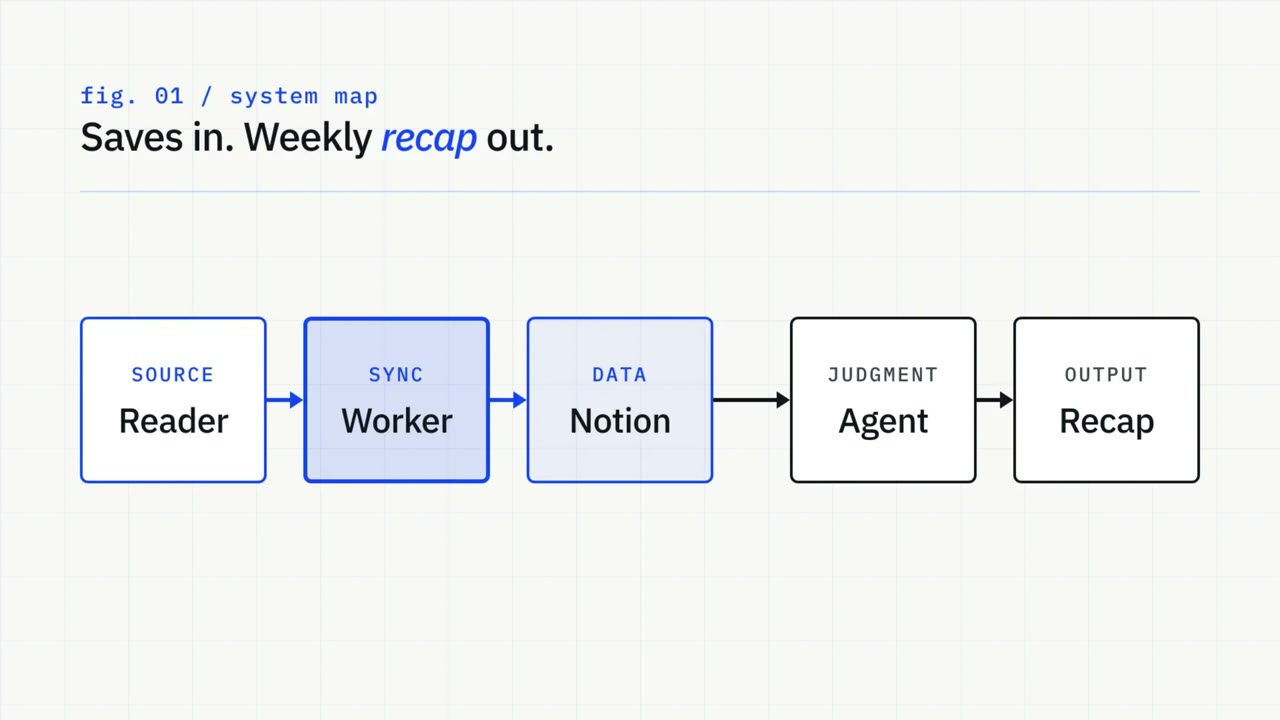
The useful distinction is simple: the Worker handles the steps that should produce the same result every time. It fetches, validates, updates, and relates the source data. The Custom Agent handles the judgment calls: which quote is interesting, which themes are emerging, and which books or long-form resources are worth exploring next.
By the end of this guide, you will have two managed Notion databases, Reading Sources and Reading Highlights, kept current by a Notion Worker. A weekly Custom Agent will use those databases to create a reading brief with a quote, a reading recap, unfinished items, recurring themes, and recommendations for deeper research.
Worker Sync, Worker Tool, or Custom Agent?
Notion Workers support three capabilities: scheduled syncs, on-demand tools, and webhooks. This build uses a sync. The agent comes after the data is already in Notion.
- Worker Sync: Runs on a schedule or manual trigger. Use it for repeatable data ingestion and normalization. In this setup, it syncs Reader sources and Readwise highlights.
- Worker Tool: Runs when a Custom Agent calls it. Use it for live lookups or actions in another system. It is not used in this walkthrough.
- Custom Agent: Runs from a schedule, event, Slack, or manual trigger. Use it for selection, comparison, synthesis, research, and writing. In this setup, it creates and delivers the weekly reading brief.
The failure mode is paying an agent to rediscover and reorganize the same source data every week. Put repeatable ingestion in code. Give the agent a clean, current database and reserve its credits for work that needs judgment.
What you need before you start
The current official template requires:
- A Notion workspace on a Business or Enterprise plan, including Business trials, with Workers enabled by a workspace owner.
- Node.js 22 or newer and npm 10.9.2 or newer.
- The Notion CLI.
- A Readwise account with API access and a personal Readwise access token.
- A local coding agent such as Codex or Claude Code. You can run every command yourself, but a coding agent makes the installation, file inspection, and schedule change easier.
- Permission to create a Notion Custom Agent if you want the weekly brief.
The Worker recipe is read-only toward Reader and Readwise. It does not delete Notion pages. It creates and maintains two managed databases, which means provider-owned fields and synced rows are controlled by the Worker. You can still add your own properties and page content, and the Worker preserves them.
Step 1: Install and authenticate the Notion CLI
Open Codex or your coding agent inside the folder where you want to keep Worker projects. Ask it to check your current Node, npm, and Notion CLI versions before installing anything.
Use this prompt:
Check whether Node.js 22+, npm 10.9.2+, and the current Notion CLI are installed. Install or update only what is missing. Do not expose tokens or credentials in the response. After installation, show me the version checks and stop before logging into Notion.The official CLI installer supports several methods. The current Readwise recipe uses:
npm install --global ntn@latestYou can verify the prerequisites with:
node --version
npm --version
ntn --version
Then authenticate:
ntn loginThe CLI opens a browser window. Choose the correct workspace and approve the connection. Return to the terminal and inspect the session with the current diagnostic command:
ntn doctorThe video uses ntn whoami. The current CLI documentation points to ntn doctor for inspecting authentication, keychain, network, and configuration state, so use that command now.
Step 2: Install the official Readwise Worker recipe
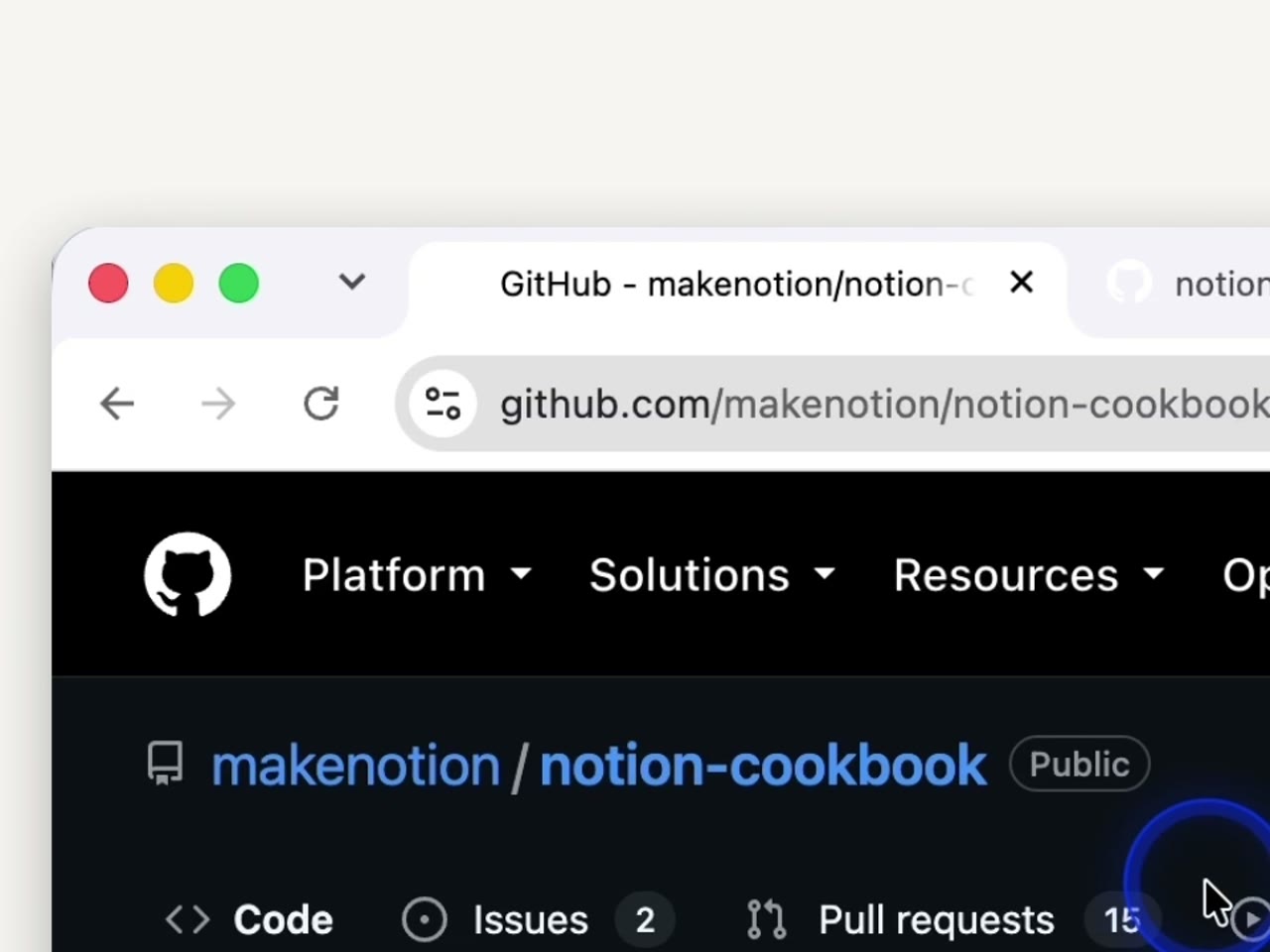
Notion maintains a public Notion Cookbook with Worker templates. This walkthrough uses workers/templates/readwise-sync.
Clone the Cookbook, enter the recipe folder, and install its dependencies:
git clone https://github.com/makenotion/notion-cookbook.git
cd notion-cookbook/workers/templates/readwise-sync
npm install
You can also paste the Readwise sync recipe URL into Codex and ask it to install the template in a dedicated folder such as Documents/Notion Workers/Reader Readwise Sync.
Keep each Worker in its own folder. The local files become the place where you inspect the code, change the schedule, run tests, and deploy updates.
Step 3: Deploy the Worker, then pause both syncs
The Worker needs to exist in Notion before you can attach its environment variable. Deploy it from the recipe directory:
ntn workers deploy --name readwise-syncUse --name readwise-sync only for the first deployment. The CLI writes the Worker identity into workers.json; later updates use:
ntn workers deployThe official recipe runs sourcesSync and highlightsSync every 15 minutes. Pause both immediately so the first scheduled run does not start before the token, preview, and import order are ready:
ntn workers sync pause sourcesSync
ntn workers sync pause highlightsSync
This sequencing matters. Deploy first, then pause, then set the token. If you try to configure a remote Worker environment before the Worker identity exists, the CLI has nowhere to store it.
Step 4: Add the Readwise access token securely
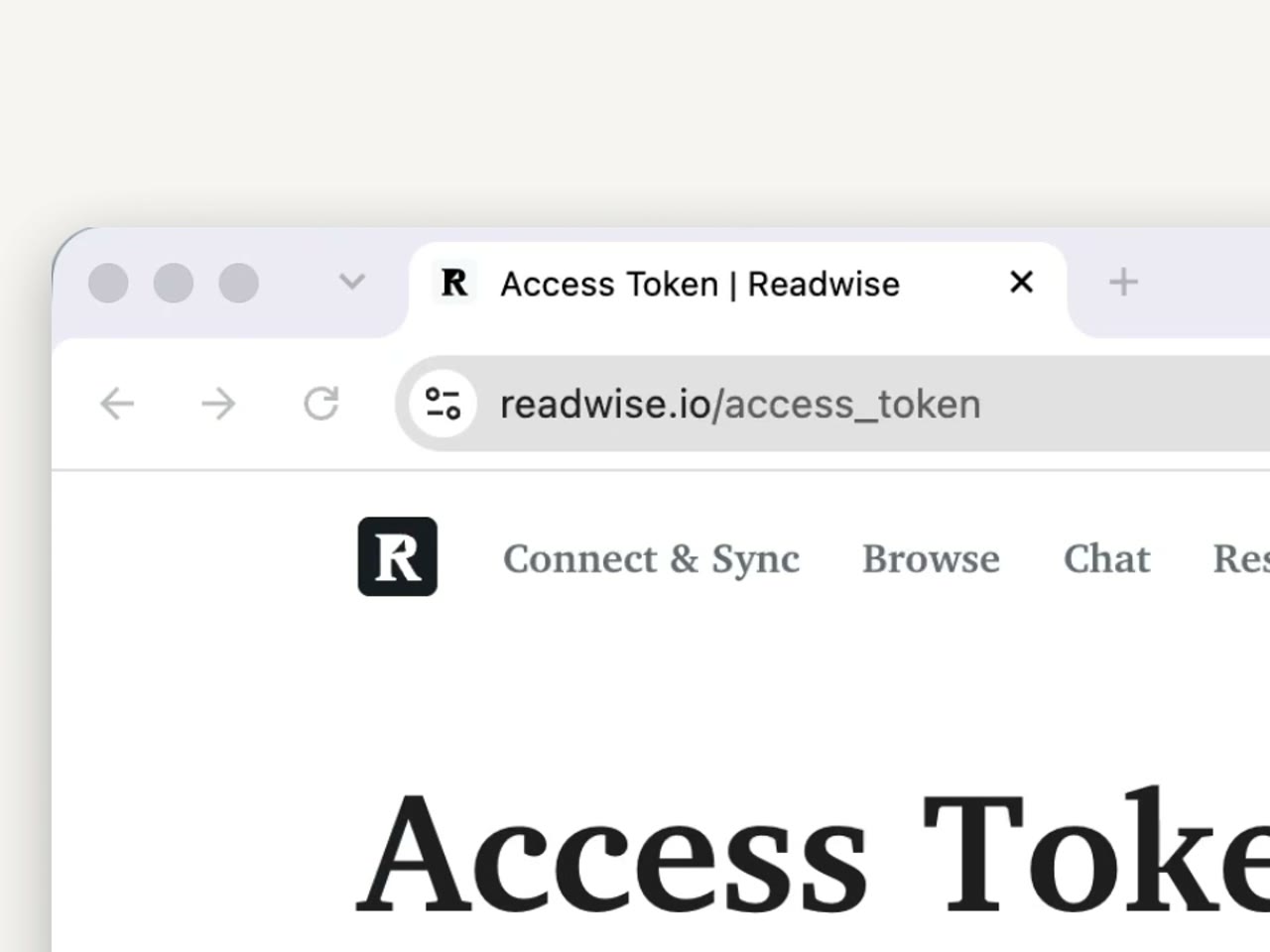
Open the Readwise access token page while logged into Readwise. Copy the token, but do not paste it into Codex, a shared chat, a screenshot, or the Worker source code.
The recipe expects one environment variable:
READWISE_ACCESS_TOKENThe direct CLI form from the recipe is:
ntn workers env set READWISE_ACCESS_TOKEN=your-tokenTo keep the token out of your visible shell history on macOS or zsh, use a temporary hidden variable:
read -s "READWISE_TOKEN?Paste your Readwise token: "
ntn workers env set READWISE_ACCESS_TOKEN="$READWISE_TOKEN"
unset READWISE_TOKEN
One deployment is bound to one Readwise token. The current template stops before reading or writing when the token changes. Restore the original token or create a separate Worker deployment and databases for another Readwise account.
Step 5: Preview both databases before writing
Preview the output of each sync without writing rows to Notion:
ntn workers sync trigger sourcesSync --preview
ntn workers sync trigger highlightsSync --preview
Preview output can contain private reading activity, notes, and highlights. Review it locally. Confirm that the records look like your Reader and Readwise data, and check the Notion sharing settings for the managed databases before the first write.
The recipe creates:
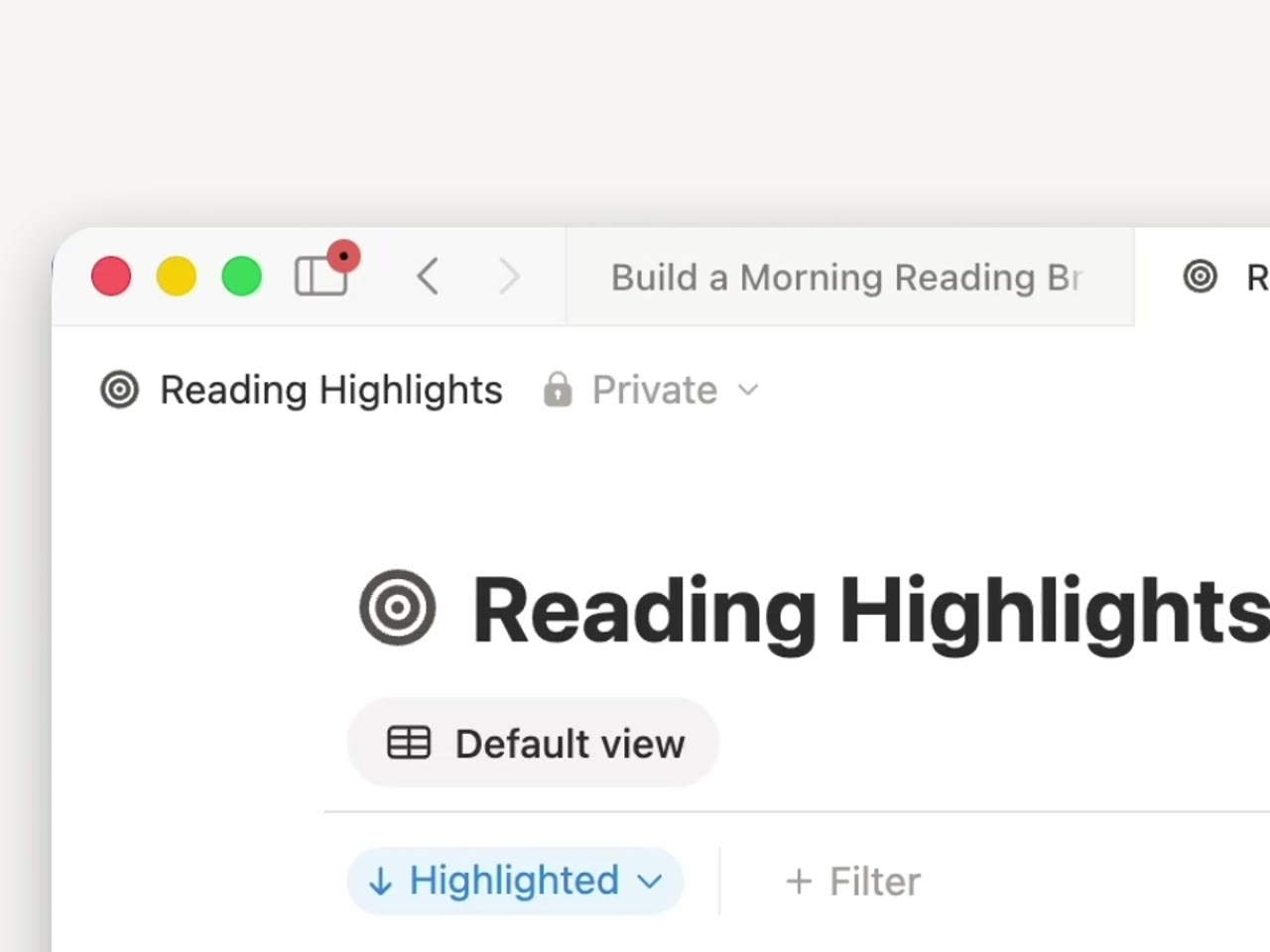
- Reading Sources: one page for each top-level Reader document or non-Reader source that has highlights.
- Reading Highlights: one page for each Readwise highlight, related back to its source.
Reader feed items and child documents are excluded from the normal Reader import. A feed item can still appear when it has a Readwise highlight and enters through Highlight Export.
Step 6: Run the first import in the correct order
Run Sources first so the Highlight records have relation targets when they arrive:
ntn workers sync trigger sourcesSync
ntn workers sync status sourcesSync
When sourcesSync succeeds, stop watching the status with Ctrl-C. Then import Highlights:
ntn workers sync trigger highlightsSync
ntn workers sync status highlightsSync
Open Notion and inspect both databases. Sort Reading Sources by its saved or updated date, open several pages, and confirm the original URL, author, category, location, reading progress, and other provider fields. In Reading Highlights, confirm that highlights relate to the expected source.
What about the January 1 backfill shown in the video?
The recorded walkthrough limits the first import to January 1 onward with help from Codex. The current official template does not ship a date-cutoff environment variable. Its first run backfills all available records, and later runs are incremental.
If you need a smaller initial history, treat that as a code customization. Ask your coding agent to inspect the current Reader and Readwise clients, add a tested upstream date filter, preview both syncs, and prove that Highlights still resolve to Sources before the first write. Do not invent or reuse an old environment-variable name without confirming that the current template supports it.
For most first builds, use the recipe as written. Get the full import working before you change its pagination or filtering logic.
Step 7: Resume the schedules and choose a sensible frequency
After both imports succeed and the data looks correct, resume the scheduled syncs:
ntn workers sync resume sourcesSync
ntn workers sync resume highlightsSync
The Readwise recipe currently sets both schedules to 15m in src/index.ts. That is probably more frequent than a personal reading archive needs. Notion's sync schedule syntax supports values such as 15m, 1h, 1d, and manual.
Ask Codex to change both sync schedules to hourly:
In src/index.ts, change only the sourcesSync and highlightsSync schedules from 15m to 1h. Preserve the sync modes, databases, capability names, tests, and import order. Run the existing checks, show me the diff, and stop before deploying.Review the diff, run the local checks, and deploy the update:
npm run check
npm test
npm run build
ntn workers deploy
Choose the slowest schedule that keeps the downstream workflow current. A weekly brief does not need a 15-minute import unless you use the same databases for other time-sensitive work.
Step 8: Create the weekly reading brief Custom Agent
The Worker is now doing its job. It keeps a deterministic dataset current. The next step is to create a Custom Agent that can make judgment calls from that data.
In Notion:
- Open Agents in the sidebar and create a new Custom Agent.
- Describe the weekly reading brief in plain language or start from a blank agent.
- In Tools and access, give the agent access only to Reading Sources, Reading Highlights, and the page or database where briefs should be saved.
- Add a Recurring trigger for Saturday at 8:00 a.m. in your timezone.
- Keep Slack delivery disabled until the Notion output passes a full test.
Use this instruction as a starting point:
Create a weekly reading brief using the Reading Sources and Reading Highlights databases.

For the previous seven days:
1. Select one exact highlight as Quote of the Week. Preserve the quote text and link to its source.
2. List the sources I read or substantially progressed through.
3. List saved sources that remain unfinished. Do not describe a saved item as read unless the database supports that conclusion.
4. Identify two to four recurring themes across the sources and highlights. Explain the evidence for each theme.
5. Search the web for books, long-form videos, podcasts, or primary resources that would help me go deeper on those themes. Link every recommendation.
6. Save the brief to the Weekly Reading Briefs page.

Use only the two reading databases for claims about what I saved, read, or highlighted. If a source is paywalled or inaccessible, use its synced metadata and say that the full text was unavailable. Preview the complete brief before posting it anywhere else.
The access boundary matters. The agent needs the reading databases and its output destination. It does not need broad workspace access.
For a deeper explanation of triggers, access, and review controls, read Notion Custom Agents: How They Work and When to Use Them.
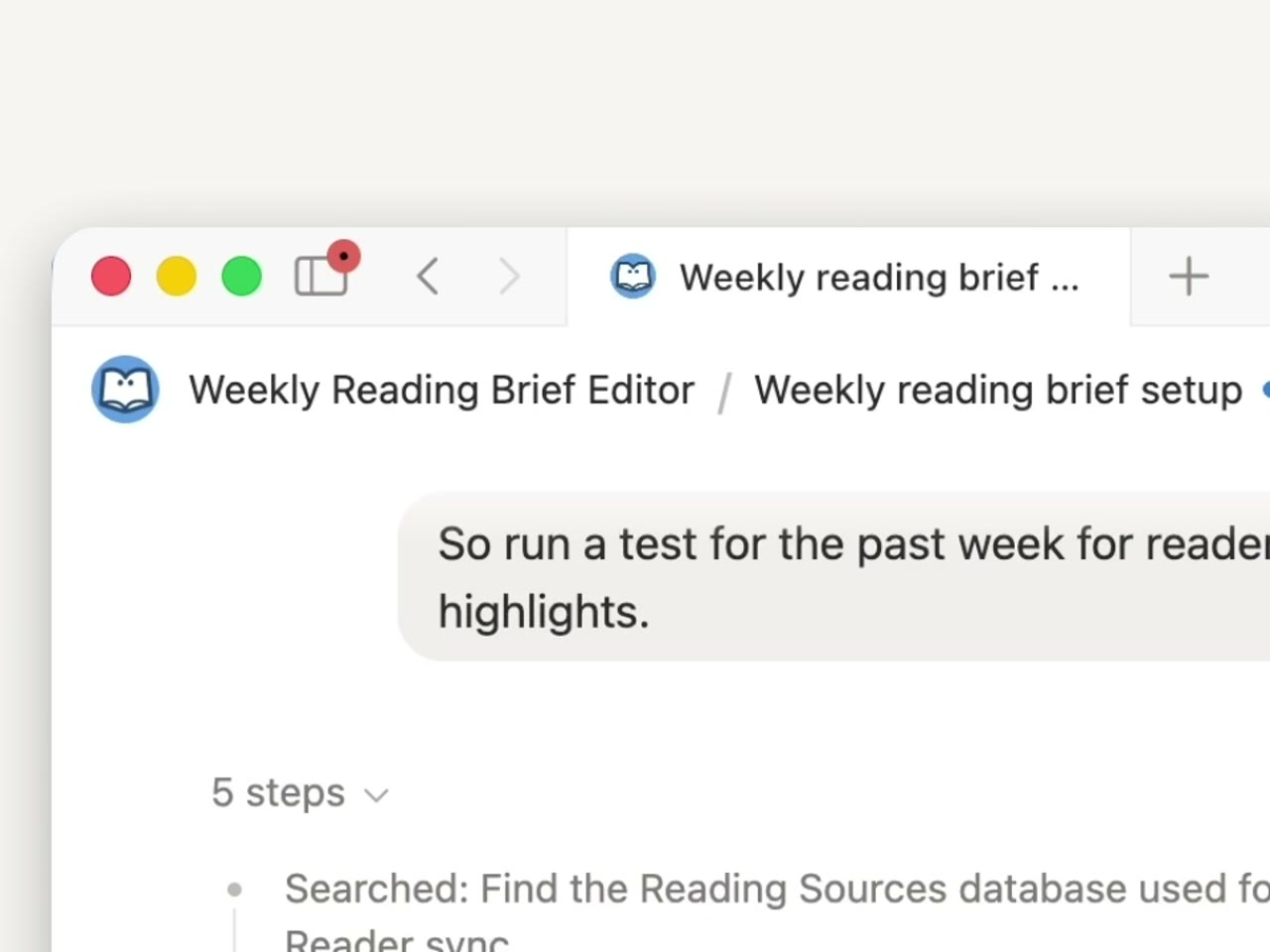
Step 9: Test the brief before enabling Slack
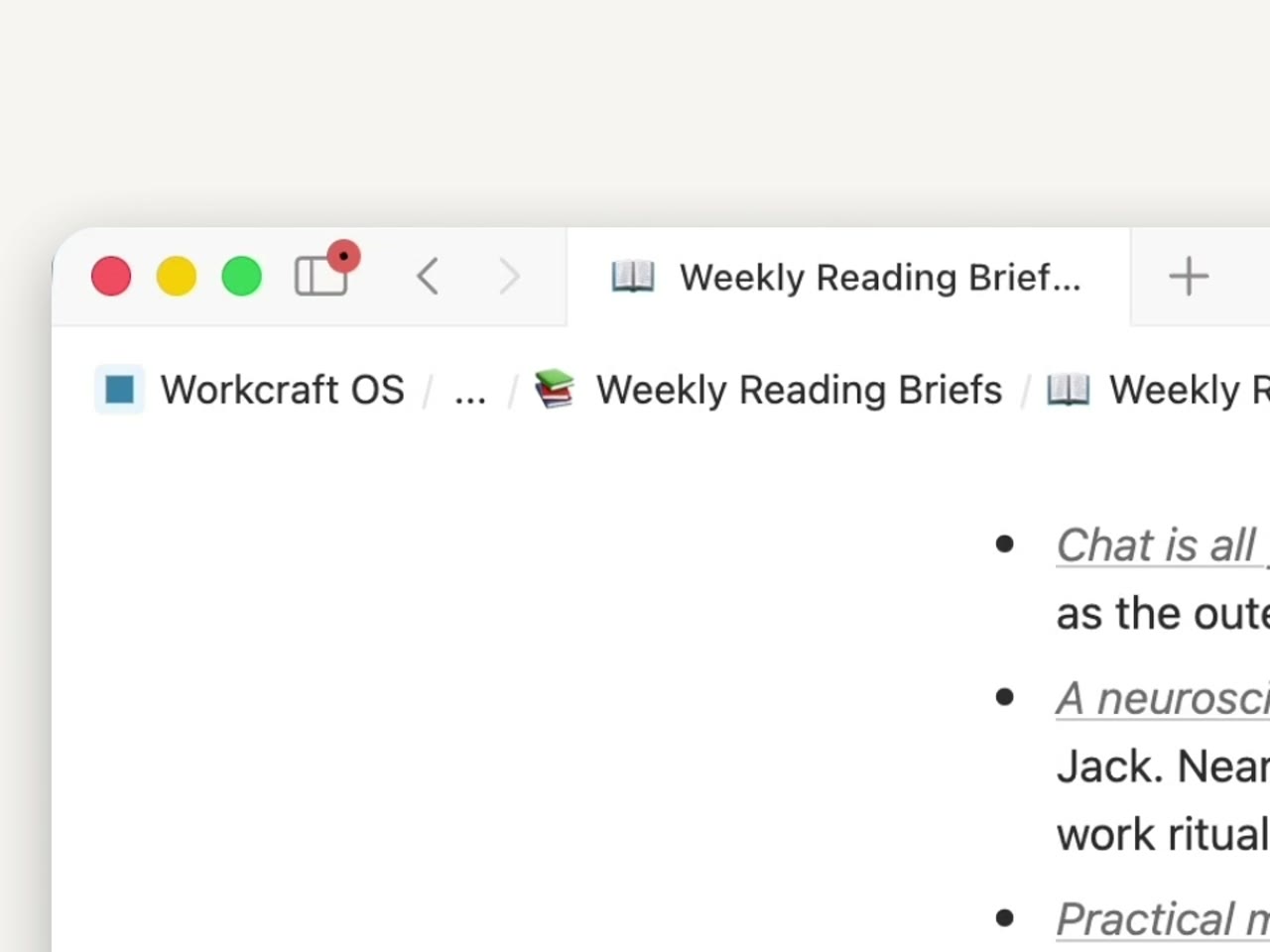
Run a complete test inside Notion. Open the generated brief and inspect the actual output rather than relying on the Agent's success message.
Check:
- The quote matches an exact Reading Highlight and links to its source.
- “Read” and “unfinished” classifications match the synced metadata.
- The themes are supported by more than one source or highlight.
- External recommendations link to real books, videos, podcasts, or primary resources.
- The agent acknowledges paywalls or missing full text.
- The brief lands in the correct Notion location.
The first walkthrough result leaned toward web articles in the “go deeper” section. That was useful feedback, not a finished configuration. Tighten the instructions if you want books, long-form video, or podcasts to take priority.
After the Notion output passes, connect Slack through Notion's Slack AI connector, give the agent access to one destination channel, and run one more end-to-end test. Confirm the message appears in the channel and that the links work.
How much do Notion Workers cost?
Notion's current Worker pricing guide says Workers are free during the beta and will begin using Notion credits on October 15, 2026. Notion lists a typical Worker run at $0.0023 and gives these scheduled-sync estimates:
- Nightly — $0.07/month: A fit for slow-moving archives.
- Hourly — $1.66/month: A fit for personal reading and most internal syncs.
- Every 15 minutes — $6.62/month: A fit for data that needs frequent refreshes.
These are Notion's examples, not a quote for your workspace. Frequency and the number of capabilities change the total. Custom Agent usage is tracked separately in the Notion credits dashboard.
One independent 10-day practitioner log reported an average of 0.2 credits per Worker execution and 5.1 credits per Custom Agent execution in one daily workflow. Treat that as a single implementation, not a benchmark. It still shows why the division of labor matters: use the Worker for predictable code and the agent for the smaller set of steps that need reasoning.
Common problems and fixes
The Worker deploys but the databases stay empty
Confirm the Worker has READWISE_ACCESS_TOKEN, then run both previews. Check the status and logs for sourcesSync before testing Highlights. The Sources import must establish the relation targets first.
Highlights appear without the expected source relation
Run sourcesSync to completion before highlightsSync. If you customized the backfill, confirm that your Source filter did not exclude records required by the selected Highlights.
The initial import is larger than expected
The current official template backfills all available records on the first run. Pause the schedules, inspect the preview, and decide whether a tested code-level date filter is worth maintaining. Do not delete managed rows manually as a substitute for fixing the import logic.
The sync costs more than expected
Check the Notion credits dashboard and reduce the schedule. A weekly brief usually works with hourly or nightly imports. Verify that both capabilities need the same frequency.
A token refresh or account change stops the Worker
The recipe binds one deployment to one Readwise token and stops before reading or writing when it changes. Restore the original token or deploy a separate Worker and separate managed databases for the other account.
The Custom Agent invents what I read
Tighten the instructions. Separate saved, opened, progressed, and highlighted states. Require the agent to cite the synced Source or Highlight record for each claim and to leave ambiguous items out of the “read” section.
Frequently asked questions
What is a Notion Worker?
A Notion Worker is a small Node/TypeScript program that Notion hosts in a sandboxed environment. A Worker can run scheduled database syncs, provide on-demand tools to Custom Agents, or receive webhooks from external services without requiring you to host a separate server.
What is the difference between a Worker Sync and a Worker Tool?
A Worker Sync runs on a schedule or manual trigger and writes external data into a managed Notion database. A Worker Tool runs only when a Custom Agent calls it for a live lookup or action. This Readwise build uses two scheduled syncs.
Do Notion Workers replace Custom Agents?
No. Workers are better for predictable code: fetch, validate, normalize, update, and relate. Custom Agents are better for judgment: select, compare, synthesize, research, and write. The strongest setup gives the agent clean Worker-managed data instead of asking it to rebuild that data every run.
Can I limit the first Readwise import by date?
Not through a built-in setting in the current official template. The first run backfills all available records. You can add a code-level date filter, but you should test it against both Sources and Highlights and confirm that relations still resolve before writing to Notion.
How often does the Readwise Worker sync?
The official recipe sets sourcesSync and highlightsSync to every 15 minutes. You can change both schedules in src/index.ts to 1h, 1d, manual, or another supported interval, then run the checks and redeploy.
Does the Readwise Worker modify or delete upstream data?
No. The official recipe is read-only toward Reader and Readwise and never deletes Notion pages. It updates provider-owned fields in its managed databases while preserving properties and page content you add in Notion.
What happens if I change the Readwise token?
The current recipe stops before reading or writing because one deployment is bound to one Readwise token. Restore the original token or create a separate Worker deployment and managed databases for the new account.
Are Notion Workers free?
Workers are free during the current beta on Business and Enterprise plans, including Business trials. Notion says Worker runs will begin using Notion credits on October 15, 2026. The current pricing guide lists a typical run at $0.0023.
Start with one narrow sync
This build works because the boundary is clear. Reader and Readwise already hold the source activity. The Worker keeps that activity organized in Notion. The Custom Agent reads the resulting databases and makes a small set of judgment calls once a week.
Start with one source, two predictable databases, and one output you will actually review. Run it long enough to find the real failure modes before you add another Worker or give the agent more access.